---
title: "Register an OAuth connect client (apaleo store) app"
sidebar: apaleo_docs_sidebar
permalink: /guides/oauth-connection/register-connect-client-app.html
redirect_from:
- "/guides/start/oauth-connection/register-app"
description:
---
In order to make any call to the apaleo Identity API, and to request your OAuth 2.0 access token,
you need to register a client application. Registered OAuth applications are assigned a unique
Client ID (`client_id`) and a unique Client Secret (`client_secret`). Make sure to store the Client Secret securely.
> Only users with administration management privileges can register applications.
---
### To register OAuth connect client app:
1. [Log into the apaleo Dashboard](https://app.apaleo.com/dashboard) with your apaleo developer
credentials. If you do not have an account, sign up for your
[apaleo developer account](https://identity.apaleo.com/account/register-dev-account).
2. Navigate to the **Apps** section and click **My store apps**.
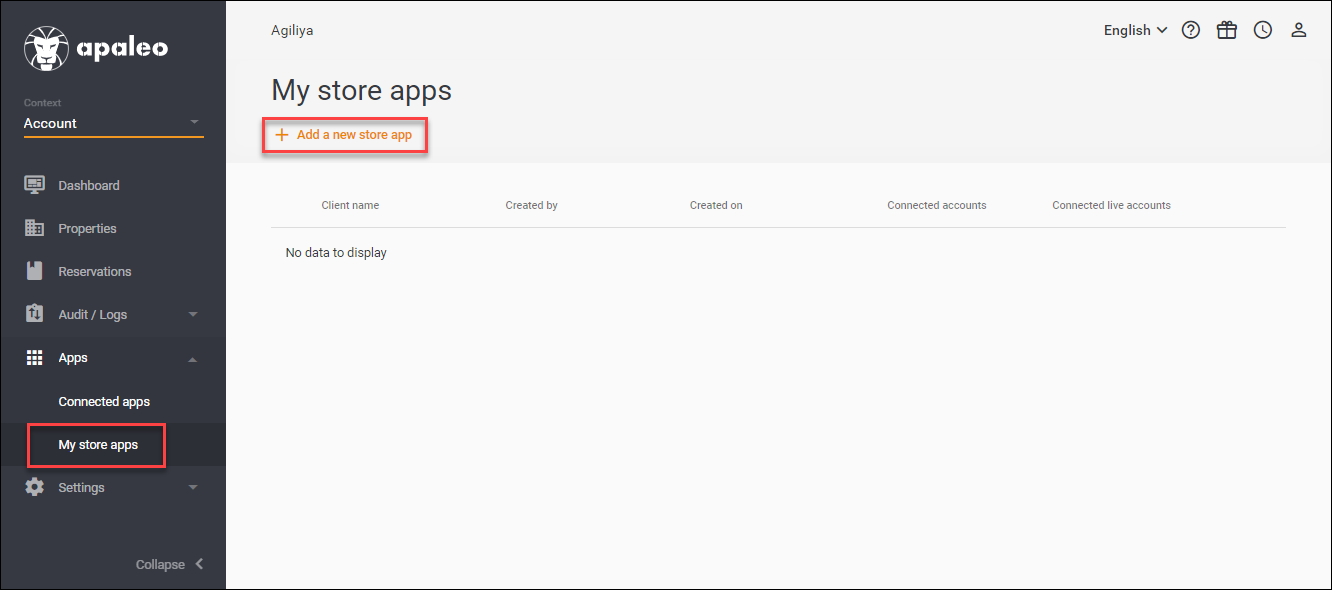 3. On the connect clients page, click **Add a new store app**.
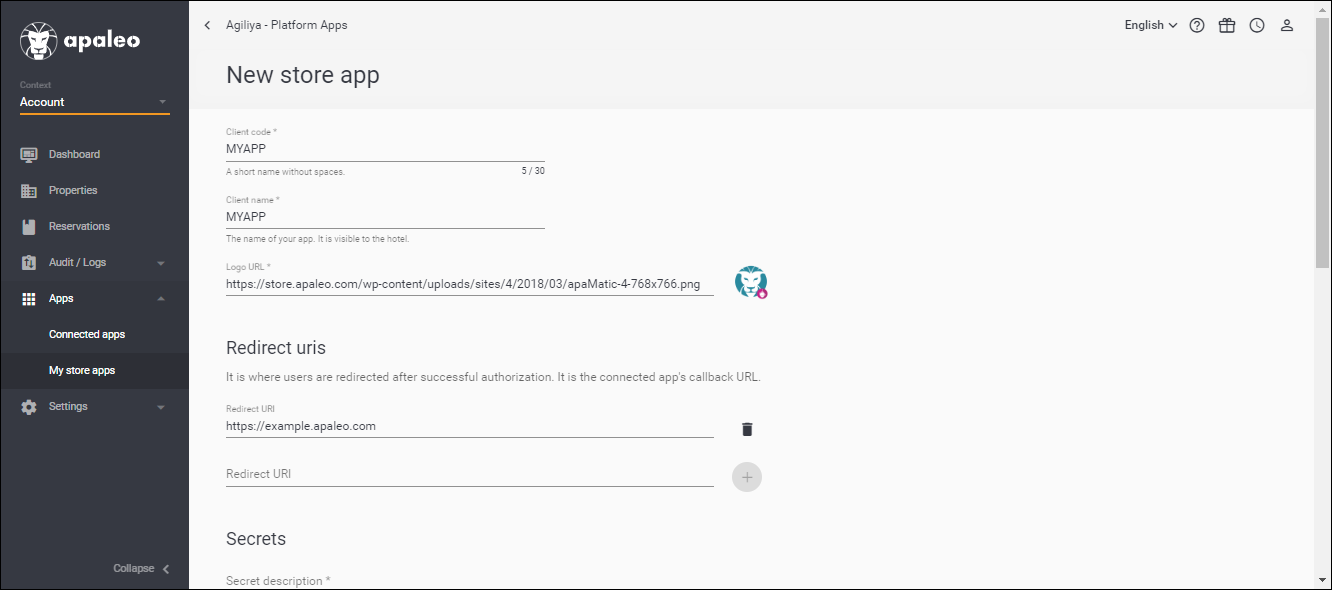 4. On this page, enter the following details:
| Field | Description |
| :------------ | :--------------------------------------------------------------------------------------------------------------------------------------------------------------------------------------------------------------------------------------------------------------- |
| Client code | Unique key for the client application. |
| Client name | Human-readable string name of the client application, used on the client consent dialog box. |
| Logo URL | URL string that references a logo for the client consent dialog box. |
| Redirect URIs | The URI to which apaleo will redirect the browser after authorization has been granted by the user. Ensure the redirect URI can be called, and is using https. The Redirect URI is your application's endpoint or callback that expects user authorization code. |
| Secrets | Description of your secret. You can add a new secret to your app to get a new client secret if you believe that the existing client secret has been compromised. |
| Scopes | OAuth scopes, or permissions, let you specify exactly how your app needs to access an apaleo user’s account. |
5. Review your app details and save your app.
4. On this page, enter the following details:
| Field | Description |
| :------------ | :--------------------------------------------------------------------------------------------------------------------------------------------------------------------------------------------------------------------------------------------------------------- |
| Client code | Unique key for the client application. |
| Client name | Human-readable string name of the client application, used on the client consent dialog box. |
| Logo URL | URL string that references a logo for the client consent dialog box. |
| Redirect URIs | The URI to which apaleo will redirect the browser after authorization has been granted by the user. Ensure the redirect URI can be called, and is using https. The Redirect URI is your application's endpoint or callback that expects user authorization code. |
| Secrets | Description of your secret. You can add a new secret to your app to get a new client secret if you believe that the existing client secret has been compromised. |
| Scopes | OAuth scopes, or permissions, let you specify exactly how your app needs to access an apaleo user’s account. |
5. Review your app details and save your app.
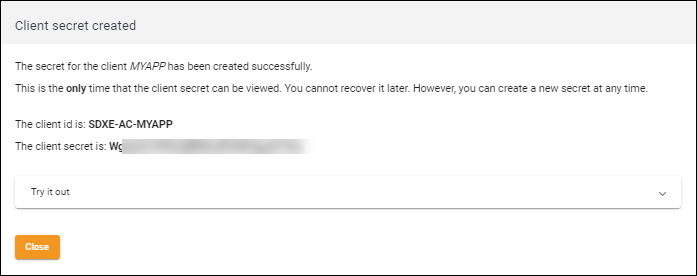 6. Take note of the client ID and client secret. You'll need these in the [next step](/guides/oauth-connection/auth-code-grant.html#step-2-exchange-the-authorization-code-for-an-access-token) to initiate the OAuth flow.
- **Client ID** - This identifies the client responsible for the OAuth request. A unique key for the
client application.
- **Client Secret** - A client secret is a secret known only to your application and the
authorization server. It protects your resources by only granting tokens to authorized requestors.
Always store the client secret key securely; never reveal it publicly! If you suspect that the
secret key has been compromised, regenerate it immediately by adding a new secret to the client
application.
> To be published on the apaleo store, your app needs to pass our app approval process.
6. Take note of the client ID and client secret. You'll need these in the [next step](/guides/oauth-connection/auth-code-grant.html#step-2-exchange-the-authorization-code-for-an-access-token) to initiate the OAuth flow.
- **Client ID** - This identifies the client responsible for the OAuth request. A unique key for the
client application.
- **Client Secret** - A client secret is a secret known only to your application and the
authorization server. It protects your resources by only granting tokens to authorized requestors.
Always store the client secret key securely; never reveal it publicly! If you suspect that the
secret key has been compromised, regenerate it immediately by adding a new secret to the client
application.
> To be published on the apaleo store, your app needs to pass our app approval process.