Register an OAuth connect client (Apaleo store) app
In order to make any call to the Apaleo Identity API, and to request your OAuth 2.0 access token, you need to register a client application. Registered OAuth applications are assigned a unique Client ID (client_id) and a unique Client Secret (client_secret). Make sure to store the Client Secret securely.
Only users with administration management privileges can register applications.
Preferred approach: an OAuth connect client with fine-grained access is currently Apaleo’s preferred way to build an app for the Apaleo Store. You choose this when you register the app (see the Client access field in step 4), and it can’t be changed afterwards.
To register OAuth connect client app:
-
Log into the Apaleo Dashboard with your Apaleo developer credentials. If you do not have an account, sign up for your Apaleo developer account.
-
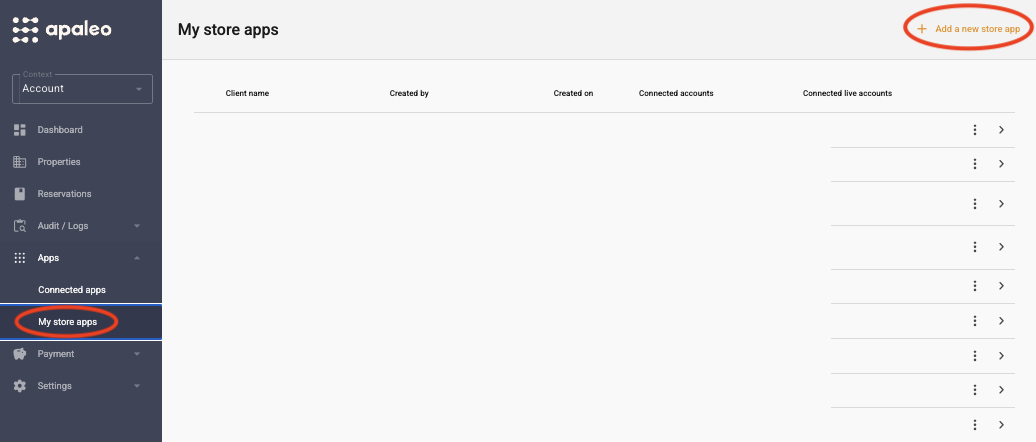
Navigate to the Apps section and click My store apps.
-
On the connect clients page, click Add a new store app.
-
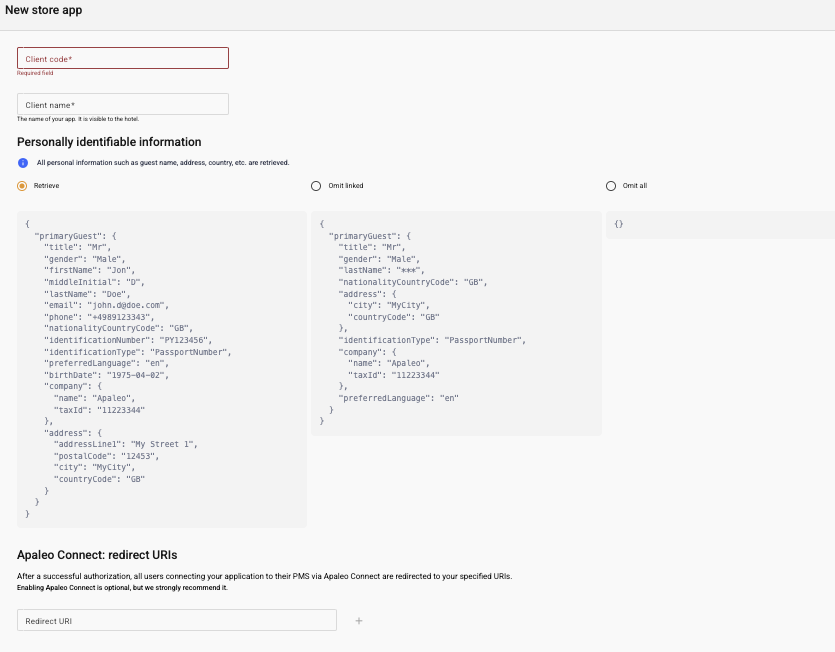
On this page, enter the following details:
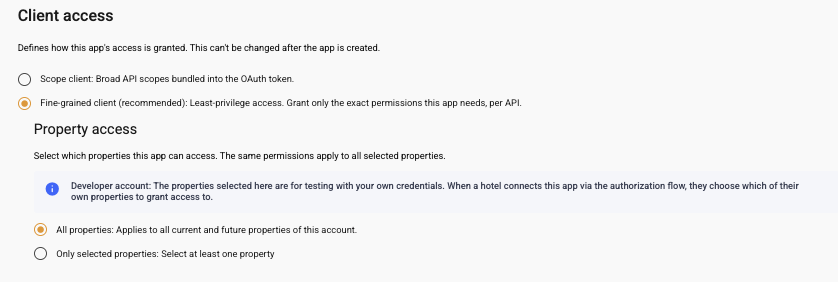
Field Description Client code A short, unique key for your app. Make it clearly recognizable as your app, for example by using your app’s name. It becomes part of your client ID. Use 3 to 30 characters: letters, numbers and underscores only. Letters are capitalised automatically. Client name The name of your app. It is visible to the hotel, including on the consent screen, so use the name hotels know your app by. Personally identifiable information Decide which personal guest data your app receives: Retrieve, Omit linked or Omit all. This can’t be changed after the app is created. See Personal data (PII) below. Logo URL URL string that references a logo for the client consent dialog box. Apaleo Connect: redirect URIs The URI to which Apaleo will redirect the browser after authorization has been granted by the user. Ensure the redirect URI can be called, and is using https. The Redirect URI is your application’s endpoint or callback that expects user authorization code. After a successful authorization, all users connecting your application to their PMS via Apaleo Connect are redirected to your specified URIs. Enabling Apaleo Connect is optional, but we strongly recommend it. Secrets Description of your secret. You can add a new secret to your app to get a new client secret if you believe that the existing client secret has been compromised. Client access Defines how your app’s access is granted. This can’t be changed after the app is created. Choose Fine-grained client (recommended): least-privilege access, where you grant only the exact permissions your app needs, per API. Or choose Scope client: broad API scopes bundled into the OAuth token. Scopes The OAuth scopes your app needs. Scopes let you specify how your app needs to access an Apaleo user’s account. Scope clients only. Permissions The exact permissions your app needs, per API. The same permissions apply to all customer selected properties. A user can only connect and use your app if their role includes all of these permissions, so select only what your app really needs. Fine-grained clients only. Property access Select which properties your app can access: All properties (applies to all current and future properties of this account) or Only selected properties (select at least one property). The properties you select here are for testing with your own credentials. When a hotel connects your app through the authorization flow, they choose which of their own properties to grant access to. Fine-grained clients only. This is how the Client access section looks:
-
Review your app details and save your app.
-
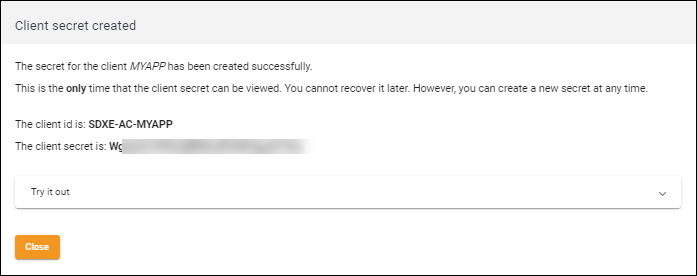
Take note of the client ID and client secret. You’ll need these in the next step to initiate the OAuth flow.
- Client ID - This identifies the client responsible for the OAuth request. A unique key for the client application.
- Client Secret - A client secret is a secret known only to your application and the authorization server. It protects your resources by only granting tokens to authorized requestors. Always store the client secret key securely; never reveal it publicly! If you suspect that the secret key has been compromised, regenerate it immediately by adding a new secret to the client application.
Personal data (PII)
Hotels trust your app with their guests’ personal data, so think about which data your app really needs before you register it. You choose one of three options for Personally identifiable information, and this can’t be changed after the app is created. If you need different data later, you have to register a new app. The form shows a preview of the guest data for each option, so check them before you decide.
- Retrieve: your app receives all personal information of the guest, such as name, email, phone number, address, identification and birth date.
- Omit linked: personal data that directly identifies a guest is left out or masked, for example first name, email, phone, birth date and identification number. Details such as title, country, city and language remain.
- Omit all: your app receives no personal guest data at all: no names, phone numbers, email addresses and so on.
Choose the most restrictive option that still lets your app do its job. A reporting or accounting app, for example, often doesn’t need names or contact details. Retrieve is preselected on the form, so choose on purpose and don’t just accept the default.
Changing your app later
You can edit your app at any time, for example to change its redirect URIs, scopes or permissions. After you change scopes or permissions, users have to re-authorize your app for the change to take effect.
The client access type can’t be changed. If you need a different type, register a new app.
Deleting your app
OAuth connect client apps can’t be deleted from your account. Once you’ve registered an app, it stays in your account.
To be published on the Apaleo store, your app needs to pass our app approval process.